Wednesday, August 16, 2017

How to save a webpage to read later in Google Chrome on your iPhone ?

Google Chrome is the leading web browser on the market. Google’s web browser also has its own ground on iOS where Safari now dominates. Google Chrome provides tons of exciting features that are missing from other competitors out there.
If you now have a modern version of Google Chrome on your iPhone, you will be happy to know that you now can save stories or webpages for offline reading on your iPhone. This is a great feature especially if you come across something interesting while reading online that you want to save for offline access.
In this tutorial, we will run you through the steps to save a webpage in Google Chrome for offline reading on your iPhone. Before proceeding with our step-by-step guide, head to the App Store and update the Google Chrome app.Must Read:how to restore contacts on iPhone without backup
Must Read:how to free up space on iphone

Steps to save a webpage to read later in Google Chrome on your iPhone

Step one: First off, you need to launch Google Chrome from your home screen and then hit the menubutton (It looks like the horizontal three dots) Must Read:how to restore contacts on iPhone without backup
Must Read:how to free up space on iphone
Step two: Next up, tap on the share button located at the top of the menu. From here, all you need to do is to tap on Read Later option to save the webpage
Step three: To access your newly-saved webpage, tap the menu button and select Reading List from the drop-down menu
Step four: Here, you will see all of the stories or webpages you have already saved in Google Chrome. You simply need to tap on a story for offline reading.

Steps to remove a saved webpage in Google Chrome on your iPhone

Step one: Launch Google Chrome from your iPhone’s home screen and then hit the Menu button at the top right corner of the screen
Step two: From the list of options, select Reading List. After that, hit the Edit button at the bottom right corner
Step three: Next up, select a story you wish to remove and hit the Delete button at the bottom left to delete it.

Wednesday, August 9, 2017

Hidden features of iPhone will simple make you say WOW!

Each of Apple’s iPhone series handsets have always come with highly advanced and powerful technology, with a beautiful body to boot. Whichever iPhone model it is that you have, you know it can work fast, answer all your queries and even click awesome pictures and videos.


As we always tell there are tons of hidden features and tricks available on iPhone which need to be explored. These features are designed by Apple to make your life easier and with each new iPhone launch the list just keeps getting bigger.

While some of the iPhone features are hidden in plain sight, some really require you to dig deep into the iOS software to spot them. They’re all quite rewarding at the end of the day though; so, it’s all worth it.


Today in this article we are going to talk about the five such hidden features which can change the way you use your device.

Must Read: 8 iPhone & iPad features that will be added with iOS 11

Lock autofocus and exposure

To access this cool iPhone feature, you need to first decide upon the point where you want the iPhone camera to focus. You must then long-press on that point, and the focus as well as the exposure will get locked instantly.


To undo this iPhone feature, or to set another point for focus and exposure, you can tap anywhere on the screen again. As you can see in the picture accompanying this tip, an icon saying AE/AF Lock will be on the screen for as long as you have decided to keep the lock on.

Must Read: iOS 11 beta 4 reveals one of the cool features for iPhone and iPad users

Shake to undo

Here’s one of the best iPhone tips for texts, emails, WhatsApp and so on. Did you know, there’s a much simpler way of getting rid of the words you just typed than pressing backspace? All you need to do is shake your phone a little to bring up a box that will ask you whether you wish to undo your typing. If you change your mind after erasing it, don’t worry!

Must Read:How to fix iPhone error 21 ?

Just shake your iPhone once again to redo your typing. This iPhone feature has a downside though as it can work involuntarily when the device gets shaken accidentally. So if you’re not keen on using it, we’d suggest you switch it off by going into Settings > General > Accessibility and turning off the Shake to Undo option.

Keyboard Shortcuts

One of the most handy and best iPhone feature is the keyboards shortcut function which allows you to set a small phrase which you can type in order to avoid typing a large one all the time. For instance, if you find yourself often texting ‘Feed the dog’ to your other half, you can set up your keyboard shortcut for that phrase as ‘ftd.’

Read More: These tips will help your iPhone battery last for more than a day

You can access this iPhone feature via Settings > General > Keyboard > Shortcuts. While one of them will ask you to insert the exact phrase you wish to save, the other one requires you to put in the shortcut for it. Once you hit save, you can access this shortcut inside any app that uses the default keyboard.

Must Read:How to download kik videos ?

Use Word as a password

The fingerprint scanner feature comes in all latest iPhone models but most people avoid using the fingerprint scanners on their iPhones in favor of numbered passcodes. But if you wish to avoid them both and go for a word as your passcode, you can do so as well. You will need to enter Settings > General > Passcode Lock and turn on the Simple Passcode option.

Must ReadOne of the Biggest features of iPhone 8 has been removed

It is particularly useful for those who own old iPhone models that did not come with any fingerprint scanners on them, it’s good that Apple has included the fingerprint scanner feature in all the latest iPhone models. But for old iPhone handset users, the passcode is the only native security feature that can be taken advantage of.

Forgot iPhone Passcode?

Part 1. If I Reset My iPhone What Will I Lose?

After encountering a major setback in your device and the only available solution is to reset, then you need to know that you will lose some data and files (if not all). However, different reset leads to different results.
There are different kinds of reset method, these methods determine the outcome of your device and answer the question: “If I reset my iPhone, will I lose everything?”. These methods include:
A Reset Through Settings on iPhone
This is a conventional method and it is very easy. It involves only your device and tapping a few buttons in order to restore the phone. In this method, there are 2 approaches to this;
  1. If you reset all settings, it will only be temporary and not all files or data will be lost. In fact, some junk and temp files i.e. it keeps your apps and data but will reset all personal preferences and network settings.
  2. If you erase all content and settings, it will delete all data on your iPhone, including songs, videos, images, etc. It is somewhat similar restoring back to factory settings.
B Reset Through iCloud and iTunes
One of the available methods Apple has put in place for iPhone users to reset their phones. It involves making a connection with a PC and logging into iCloud or launching iTunes respectively. This method is however complicated but resets through iTunes and iCloud will make you lose all your files and data; more like restoring back to factory settings. If you need to get back your data you may need to get help from some professional recovery tool.

Part 2. How to Restore iPhone after Reset via iTunes

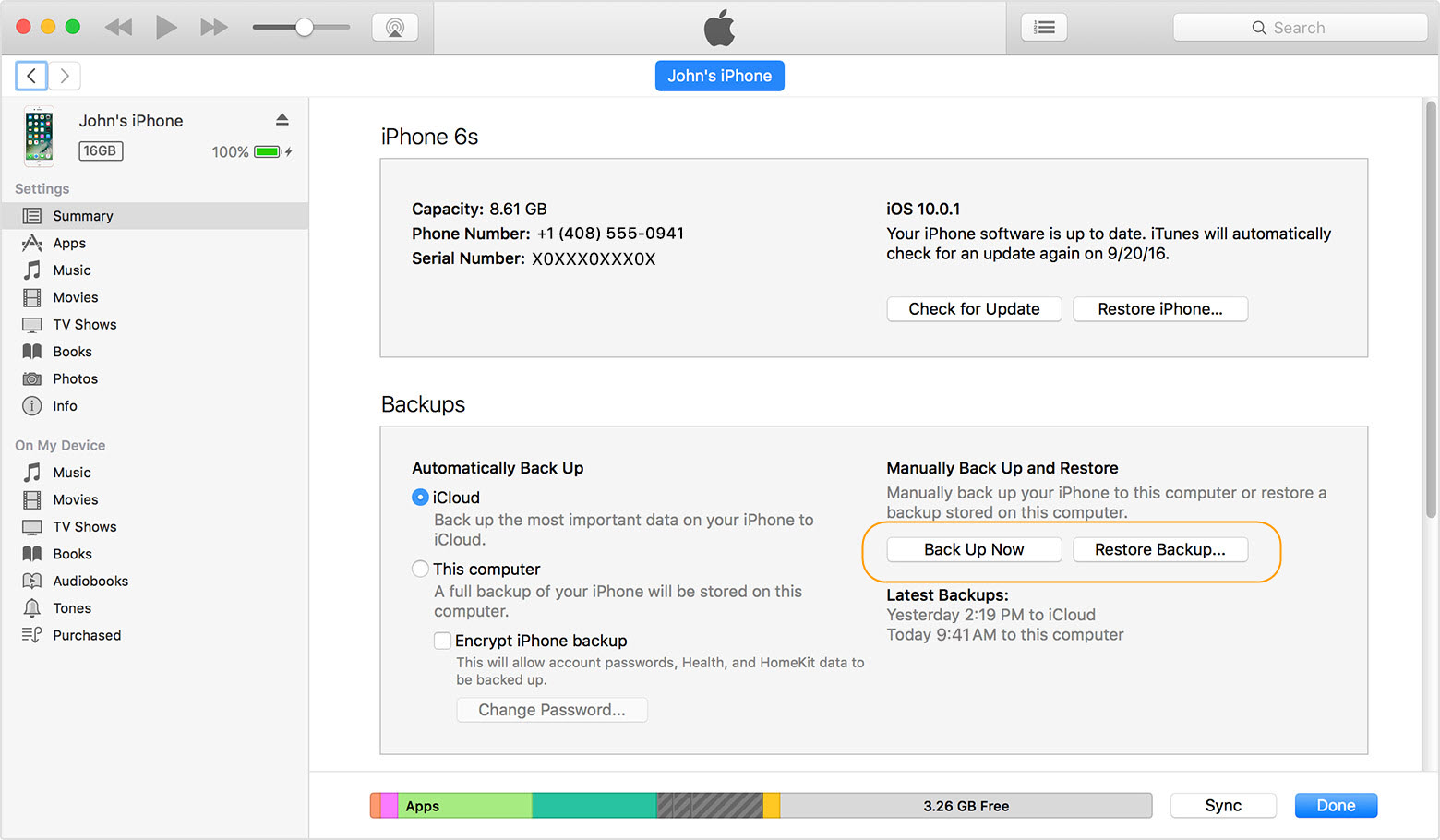
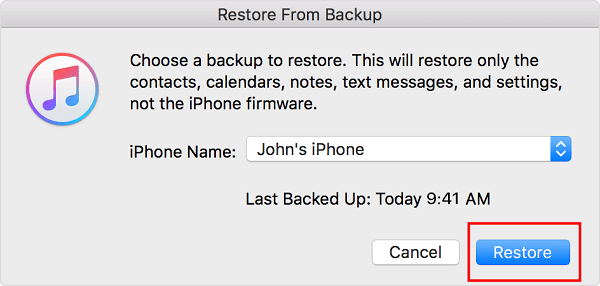
When you reset iPhone with any of the method listed above, no doubt, some important files could be deleted or lost and you would want to restore them. In order to do this, you can restore iPhone from an iTunes backup if you have backed up before. Apple set up this method so the maximal use of iTunes can be put into action and one can be able to backup devices in case of future problems.
Step 1: Connect your iPhone to a PC.
Step 2: Make a quick launch of iTunes and go to File menu, select “Devices”.
Step 3: Choose “Restore Backup”.
restore from iTunes
Step 4: Pick a recent backup on the basis of size and date, and click on “Restore”.
restore from iTunes
After all these steps, you now have your iPhone restored via iTunes, and this is also very useful also after reset.If you ever lost or accidentally deleted data from your iOS device, you can use the professional Gihosoft iPhone Data Recovery software to retrieve important data from iPhone, iPad or iPod Touch even without backup.
Jihosoft iPhone Backup Extractor Extract and recover all types of data from iPhone backup files, such as camera roll photos, videos, SMS, contacts, reminders, WhatsApp, and etc.

Monday, July 31, 2017

How to upload GIFs to Instagram with iPhone

Instagram is a social network that may not enjoy the popularity of Facebook, but it must be recognized that it is quite cool. Being able to communicate through messages integrated in photographs has his, and certainly opens a world of possibilities for lovers of travel, food, fashion, animals ... Its use is quite simple, the truth is that it is not complicated upload photos And share them.Must Read:How to get more storage on iPhone?
Must Read:How to clear cookies on iPhone ?

But what if we want to upload a GIF? There the thing gets complicated. In fact, I think most of their users would not know how. And is that first of all, actually when you discover this trick you will see that a GIF as such is not, we explain.

And what we are going to do is convert a GIF into a short video in MP4 format, so strictly speaking, it will no longer be a GIF. It sounds complicated, but thanks to an app, we'll do it a wink. Although in the App Store there are many that convert GIFs to videos, but none as fast and intuitive as GifLab.

GifLab

How GifLab Works

GifLab allows us to create a GIF quickly and share it in a couple of taps. In addition, we can add texts, apply filters, control their quality and speed of reproduction, share it in networks ... But let's stick to the part where we upload to Instagram.

1) Save the GIF you want to share on Instagram on your reel.

2) Open GifLAb and select "GIF to Instagram"

3) Selects the GIF and adjusts the playback speed.

4) Click on "Save and share on Instagram", that is, save the changes and upload them to the network.

And that's it. As you can see, it is the simplest thing you can do and the result is simply spectacular. If you like Instagram, this app is going to become a must for you.
Sponsor ads:
Gihosoft iPhone Data Recovery Free
Free iPhone Data Recovery Software for Windows/Mac
Recover up to 12+ types of files, including contacts, SMS, photos, WhatsApp, Viber, notes, etc.
Restore lost data from iOS devices directly or from iTunes and iCloud backup
Recover iPhone data lost due to iOS upgrade/jailbreak, accidental deletion, device lost or broken
Support all the latest iPhone, iPad and iPod Touch
Both Free and Pro version.
If you lost data after you updated to a new iPhone, you can always use Gihosoft iPhone Data Recovery to get the data back from the old iPhone or backup.You may also like: iphonerecovery.com
If you use android phones, please choose Gihosoft Android Data Recovery.
With Gihosoft Android Data Recovery, no longer afraid of data loss!
Gihosoft RePicvid Free Photo Recovery Software provides a free photo recovery software for windows to help users recover the deleted or lost photo for free.
Jihosoft Android Data Recovery: the best Android Data Recovery software for Windows and Mac to recover deleted contacts, messages, photos, videos, WhatsApp and etc from Android devices.

Thursday, May 4, 2017

How to Get Targeted Traffic From YouTube (My 5 Best Tips)

Hey,
I'll be honest with you:
When I first launched my YouTube channel I didn't really know what I was doing.
I published quality videos...but only a handful of people watched each one.
It felt like YouTube's search engine was punching me square in the mouth.
That's when I decided to run LOTS of experiments...
I tested different video formats.
I tested different titles.
Heck, I even tried using "weird" thumbnails to stand out more.
I ultimately walked away with a video SEO process that worked REALLY well.
(How well, you ask? I currently rank #1 in YouTube for "SEO").
The best part?
My process is only five steps. And anyone can follow it.
I reveal the entire process in this new video.
Here’s what you’ll learn in today’s new video:
-The one ranking factor you MUST master to succeed on YouTube (mess this up and you're toast)
-How I use the "The PPP Formula" to quickly outrank videos that have ranked #1 for YEARS
-The simple, 5-step process you can use to rank higher in YouTube (hint: this is the same process I used to rank in the top 3 for "get traffic", "SEO", and "link building")
- And more
Must Read:How to backup imessages to icloud ?
Must Check:

Apple Releases iOS 12.4.2 for Devices That Don’t Support iOS 13

Apple recently launched the iOS 13. As expected some of the older iPhones will not support iOS 13 and will continue running iOS 12. Apple ha...